Registration form
New events start with the default form. The form builder changes its questions.
The default form
New events get a published form with four sections:
- Personal details: name, email, participant category, country and organization.
- Participant profile: academic, student, industry and government questions, shown by category.
- IEEE membership: member or not, with the member number and grade for members.
- Event questions: reason for attending, dietary and accessibility requirements.
First name, last name, email and participant category are always on the form.
The form builder
Open Registration form in the editor. The builder has three columns:
| Column | Use |
|---|---|
| Field library | Standard IEEE fields and custom question types. Drag or select one to add it. |
| Center | The form's sections and fields. Drag fields to reorder them within or across sections. |
| Field settings | The selected field's label, help text, required flag, options, validation, privacy and conditions. |
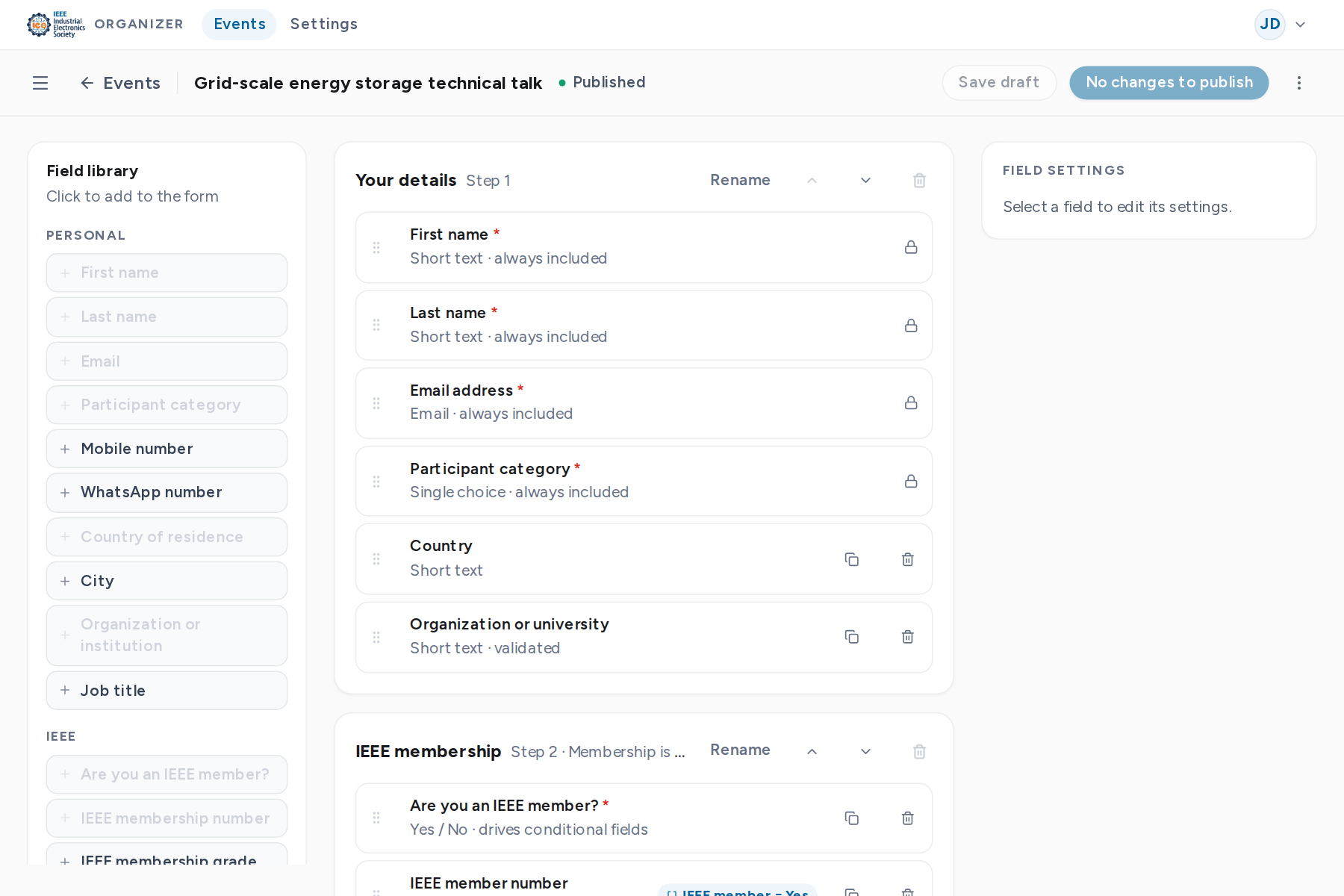
Question types: short and long text, email, phone, number, URL, date, dropdown, single and multiple choice, checkbox, consent and info block.
Conditional questions
A field can be shown only when an earlier answer matches a rule, for example the member number only when the attendee is an IEEE member. Hidden fields are never required.
Preview and publish
- 1
Save draft keeps your edits without changing the live form.
- 2
Preview form shows the form as attendees see it, at desktop and mobile widths.
- 3
Publish form makes the new version live for new registrations.
Templates
Save as template keeps a copy of the form for your future events. Apply template replaces the draft with a saved template. Version history lists every published version.